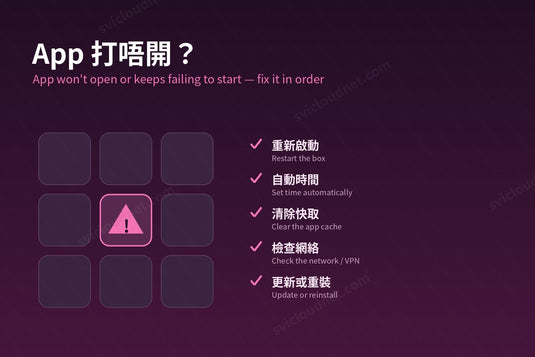
應用程式打不開、停在載入畫面一直轉圈、顯示「啟動失敗」或「無法連線」——這類問題在任何 Android 電視盒上都會遇到,而大部分都不是硬件故障。以下十步由最簡單、最常見的原因開始,建議按次序逐一試,不要一開始就重設整部機。
An app that won't open, spins forever or reports a start-up failure is rarely a hardware fault. Work through these in order — cheapest and most common first.
1. 完整重新啟動 / Restart Properly
按遙控器關機只是進入待機,不算重新啟動。請拔掉電源 10 秒再插回,讓系統和網絡連線完整重新開始。
Standby is not a restart. Unplug the power for ten seconds.
2. 檢查網絡是否真的通 / Check the Network Actually Works
打開另一個應用程式(例如 YouTube)或瀏覽器試試。如果全部都不能上網,問題在網絡而不是 App:重新啟動路由器,或暫時改用網線測試。
If nothing can get online, it's the network, not the app — restart the router or test with Ethernet.
3. 確認日期和時間 / Check Date and Time
到「設定」確認日期、時間和時區正確,並開啟「自動設定」。時間偏差幾分鐘,安全連線(HTTPS)就可能被拒絕,表面看起來就是「App 連不上」。
A clock that is off breaks secure connections. Turn automatic date and time on.
4. 強制停止再開啟 / Force Stop and Reopen
「設定」→「應用程式」→ 選擇該 App →「強制停止」,再重新打開。
Settings → Apps → the app → Force stop, then reopen.
5. 清除快取 / Clear the Cache
同一頁選「儲存空間」→「清除快取」。快取只是暫存檔,清除後不會刪除登入資料或設定,是最安全的第一步清理。
Clearing the cache removes temporary files only — your settings stay.
6. 清除資料 / Clear Data (If the Cache Wasn't Enough)
「清除資料」會把 App 還原到剛安裝的狀態,之後可能需要重新登入或重新設定,所以放在清除快取之後才做。
Clearing data resets the app to fresh-install state — you may need to sign in again.
7. 檢查儲存空間 / Check Free Storage
內部儲存空間不足時,App 會無法更新或啟動。建議保留至少 1–2GB 可用空間;影片檔應放在 USB 硬碟,而不是複製到盒子內。
Keep at least 1–2GB free; keep films on USB storage, not internal memory.
8. 暫時關閉 VPN、代理或自訂 DNS / Turn Off VPN, Proxy or Custom DNS
盒子或路由器上的 VPN、代理伺服器、廣告攔截 DNS,都可能令 App 連接不到它的伺服器。先全部關閉測試;關掉後正常,就是這些設定引起的。
VPNs, proxies and ad-blocking DNS on the box or router commonly block app connections. Test with them all off.
9. 更新或重新安裝 App / Update or Reinstall
舊版本 App 有時會在服務端更新後停止運作。先檢查有沒有新版本;如果沒有,解除安裝後再從原本的途徑重新安裝最新版本。
Old versions can stop working after server-side changes. Update, or uninstall and reinstall the latest version from where you installed it.
10. 檢查系統更新 / Check for a System Update
「設定」中查看有沒有 15P 系統更新;更新期間切勿拔電。詳見韌體更新教學。
還是不行?/ Still Not Working?
- 只有一個 App 有問題、其他正常:多數是該 App 或其伺服器的問題,稍後再試。
- 所有 App 都慢或卡頓:見播放卡頓十個解決方法。
- 重設原廠設定是最後手段:會刪除所有 App 和設定,請先記下需要重新登入的帳號。
- 已購買的客戶可以透過 聯絡我們 提供訂單編號和畫面上的錯誤訊息,我們會協助排解。
More: troubleshooting page · SVICLOUD 15P.
小雲盒子 15P 是一部 Android 電視盒硬件;可觀看的內容取決於用戶自行安裝的應用程式,以及所在地區的版權規定。本文只說明技術設定。
The 15P is Android TV-box hardware; what you can watch depends on the apps you install and the copyright rules where you live. This article covers technical setup only.
延伸閱讀 / Related Reading
支援與教學 / Support & Guides
- 查詢訂單 — Track Your Order(輸入訂單編號即可查看物流狀態 / live carrier status)
- 小雲盒子完整安裝教學 — Complete Setup Guide
- 問題排解 — Troubleshooting
- 產品常見問題 — Product FAQs
- 售後服務與保固 — After-Sales & Warranty